FLARE
Complaints & cases · Claytan Australia

Flare Field Guide

One case, one timeline, and a wall down the middle. Everything the customer sees is marked customer sees. Everything else stays inside the building. This guide shows both doors, what happens behind each one, and exactly which words reach the customer.

The two doors For customers For the team Shared vs internal Stages & gates Rules of thumb

Start hereTwo doors. Give the right one to the right person.

Customers · merchants · plumbers
care.claytan.rightcortex.io

No account, no password. They fill in one form and get a case number and a private link by email. That link is how they check progress, add photos and reply.

  • Print it on delivery dockets, put it in email signatures.
  • Everything typed here is the customer's own words, in the customer's own case.
Claytan team
ccau.rightcortex.io/flare

Sign in with your Claytan Google account. Anyone signed in can raise a complaint or suggestion and follow their own. Working the board needs Flare access, which CS grants.

  • A complaint that arrived by phone, WhatsApp or in person goes in through + New case here.
  • Never through the customer form.
Do not key a customer's complaint into the customer form.

The customer form belongs to the customer. If a team member types a complaint there and enters the customer's email, three things happen at once: the customer is emailed "we have your complaint" with a private link, everything typed appears on their case page as their own words, and any photo attached is visible to them immediately. Use + New case on the board instead. It captures the same details, sends the tracking link only if you leave the box ticked, and lets you add private notes that the customer never sees.

Door oneFor customers: report it once, then follow the link

This is what a customer sees on their phone. Share this section with a customer who asks how it works.
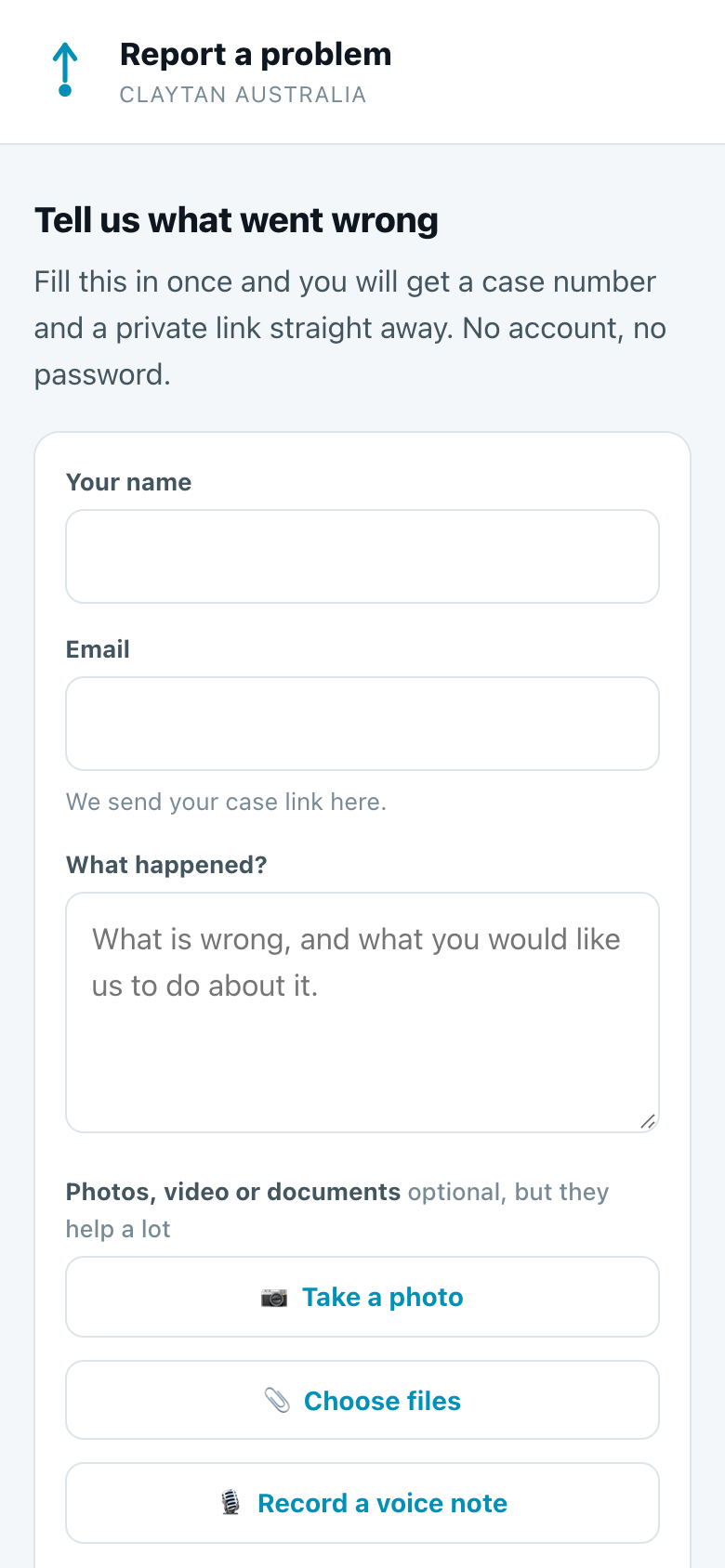

The Report a problem form: name, email, what happened, and buttons to take a photo, choose files or record a voice note
1 · The form. Name, email, what happened. Photos, video, a PDF or a voice note recorded right there. Nothing else is required.
The same form filled in, with the optional order details expanded
2 · Order details are optional. Product code, invoice number and phone help us move faster, but the form goes through without them.
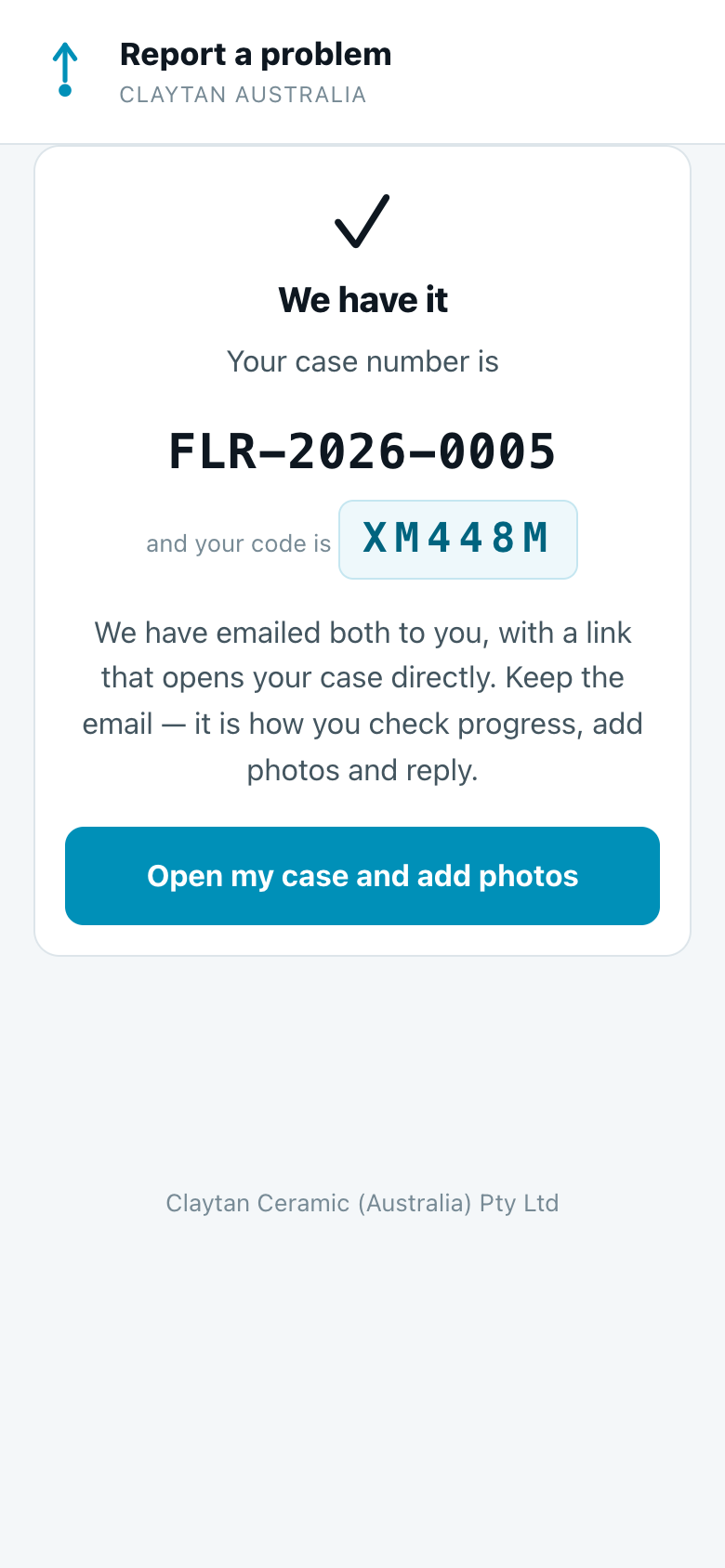
Confirmation screen: We have it, case number FLR-2026-0005 and a six-character code
3 · Straight back: a case number and a code. Both are emailed with a link that opens the case directly.
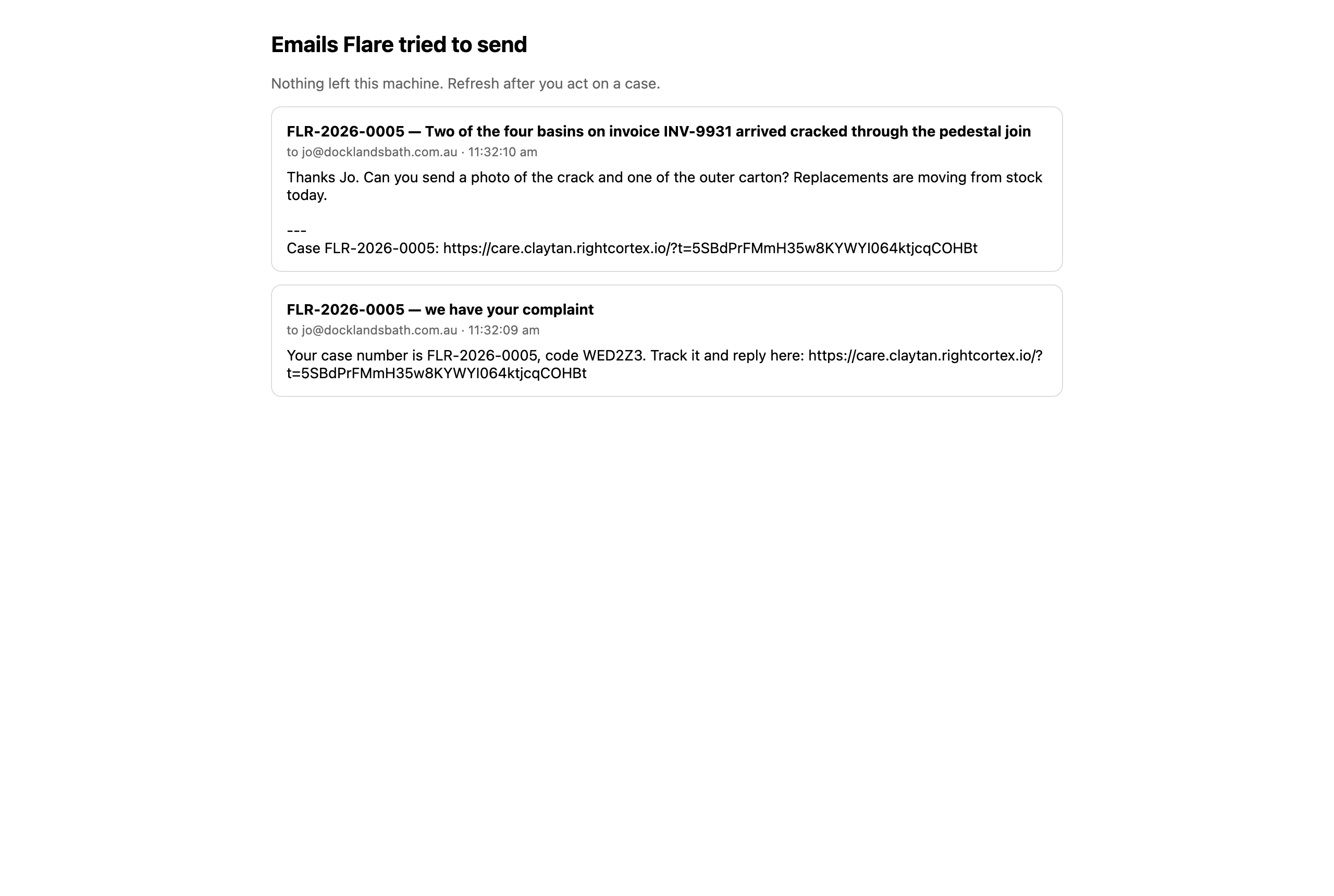
Two emails the customer receives: the acknowledgement with case number, code and link, and a reply from Claytan carrying the same link
4 · What lands in their inbox. An acknowledgement the moment the case is lodged, and then every reply we send them, each carrying the case link.
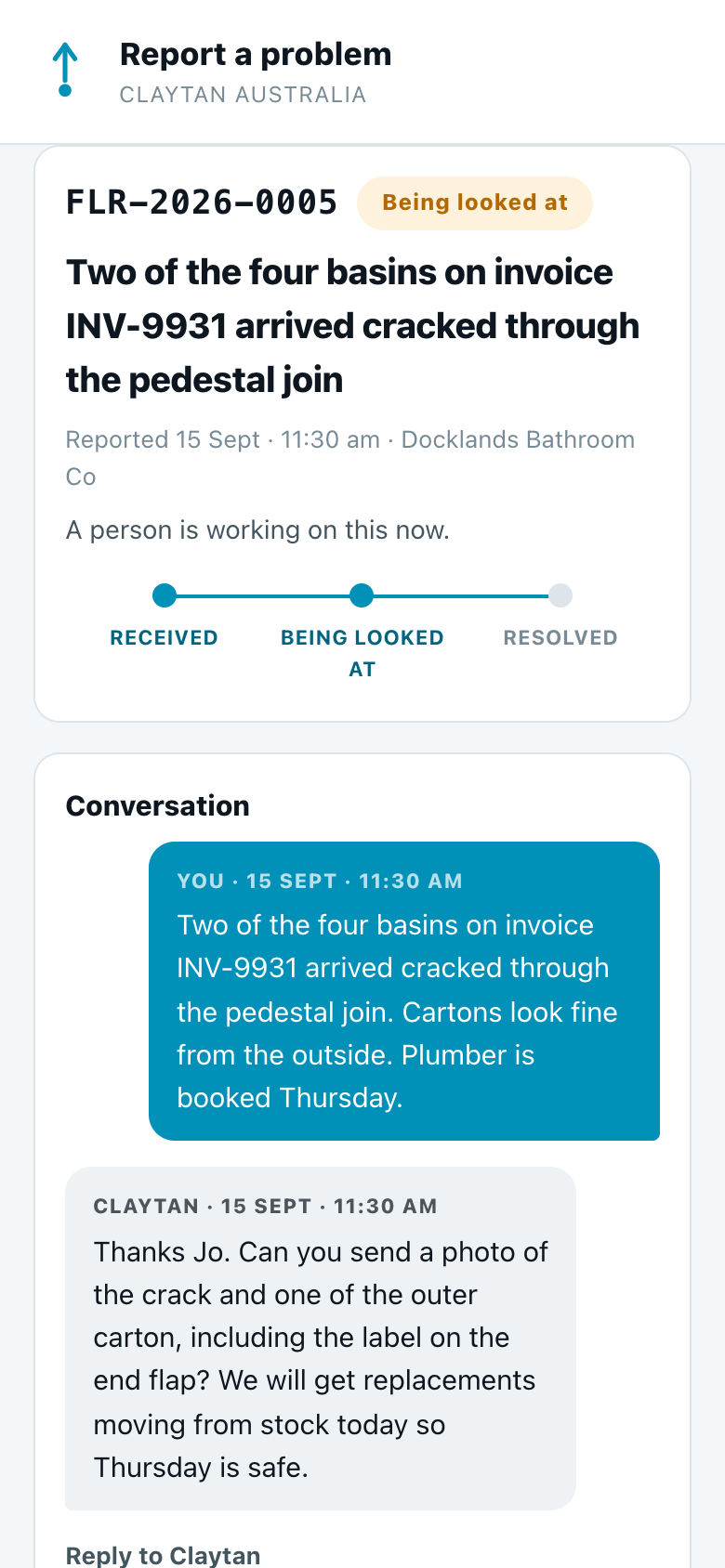
The customer's case page: status Being looked at, a progress strip Received / Being looked at / Resolved, and the conversation
5 · Their case page. Status in plain words, a progress strip, and the conversation. Only messages we sent as Reply to customer appear here.
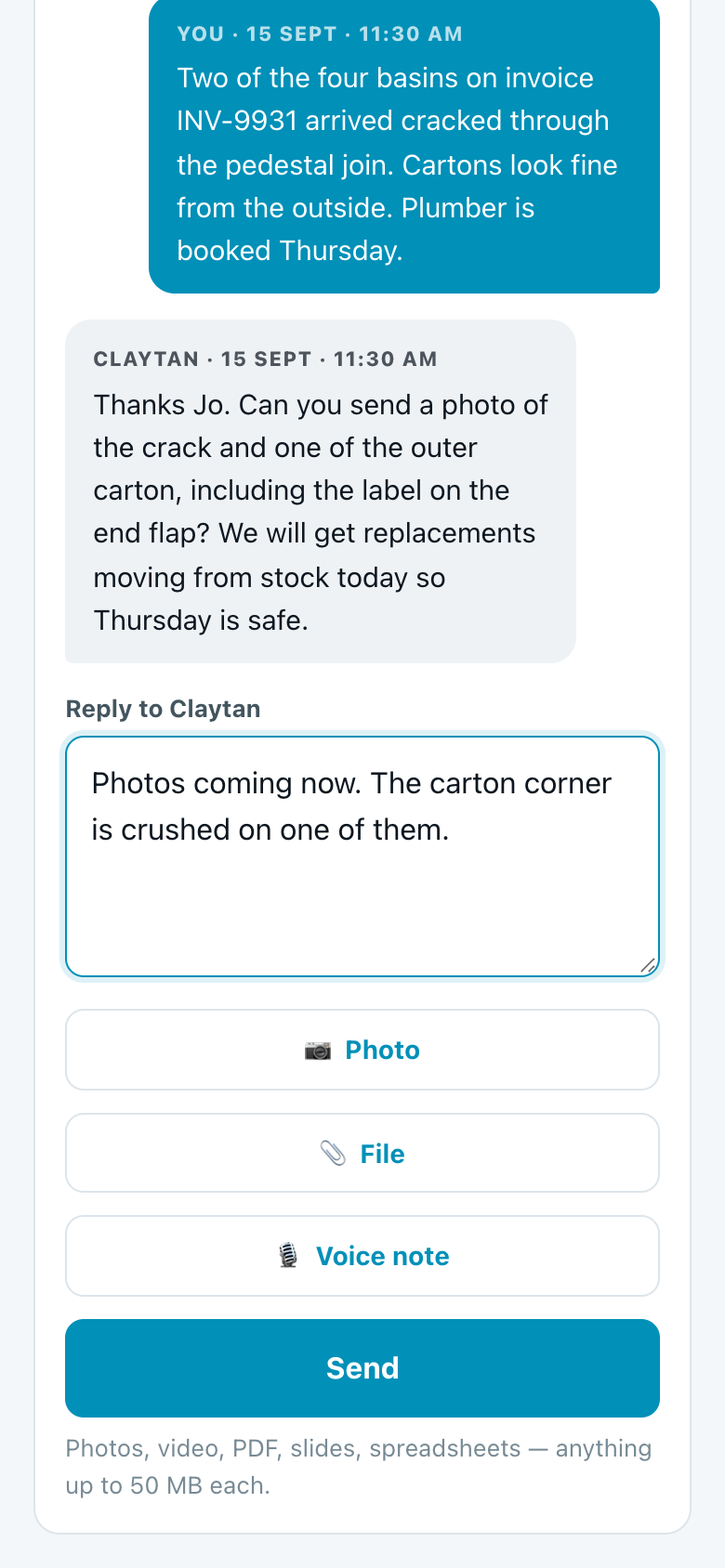
The Reply to Claytan box with Photo, File and Voice note buttons and a Send button
6 · They reply on the page. Text, photos, files or a voice note. Their reply lands on the team timeline instantly and moves the case back to Investigating.
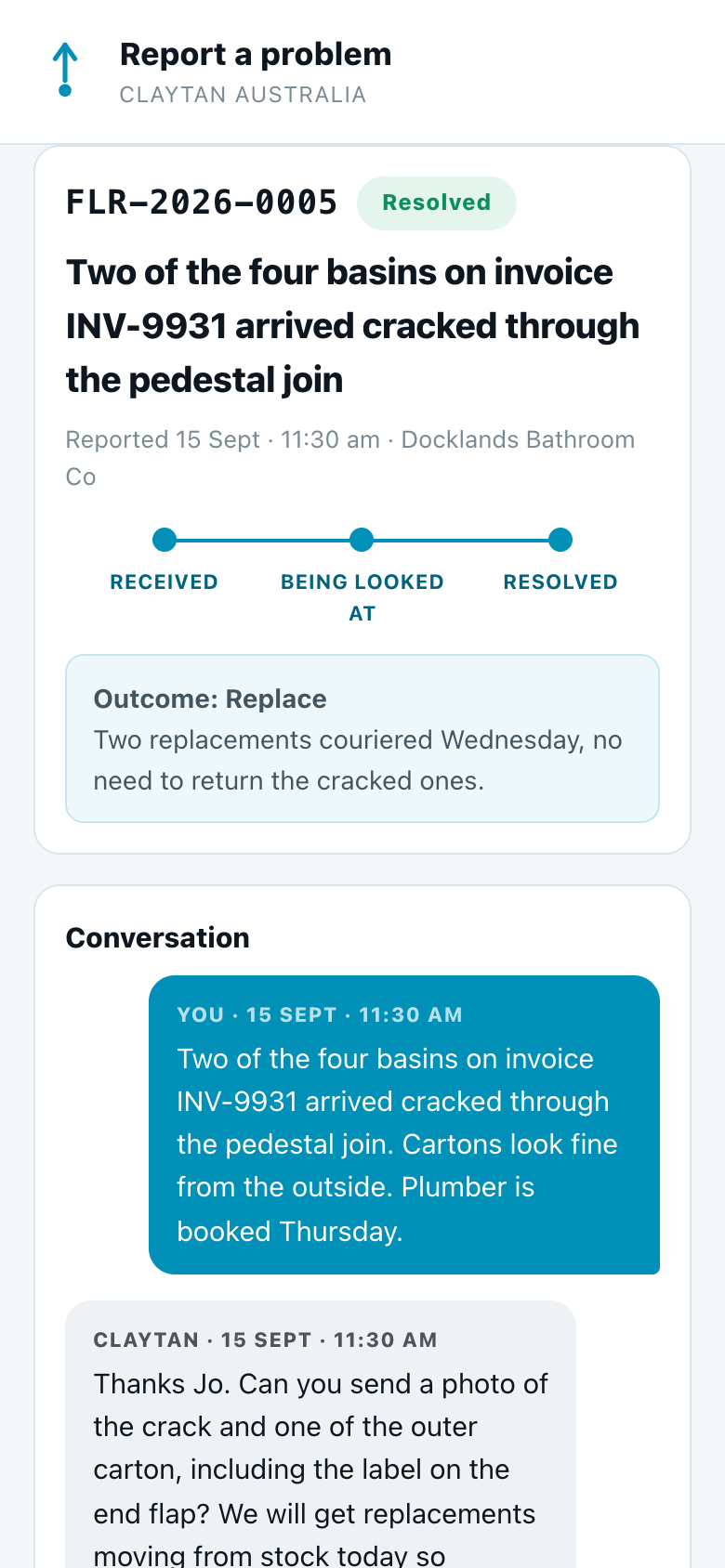
The case marked Resolved with the outcome shown: Replace, two replacements couriered Wednesday
7 · Resolved. They are emailed, the outcome and its note appear on the page, and they are asked to rate us. A reply to a resolved case reopens it.

Lost the email? Case number plus code

The same form has an Already reported something? box. The case number and the six-character code are printed in every email we send, and both are on the case for staff to read out over the phone. A case number alone opens nothing. Five wrong codes lock the case for fifteen minutes.
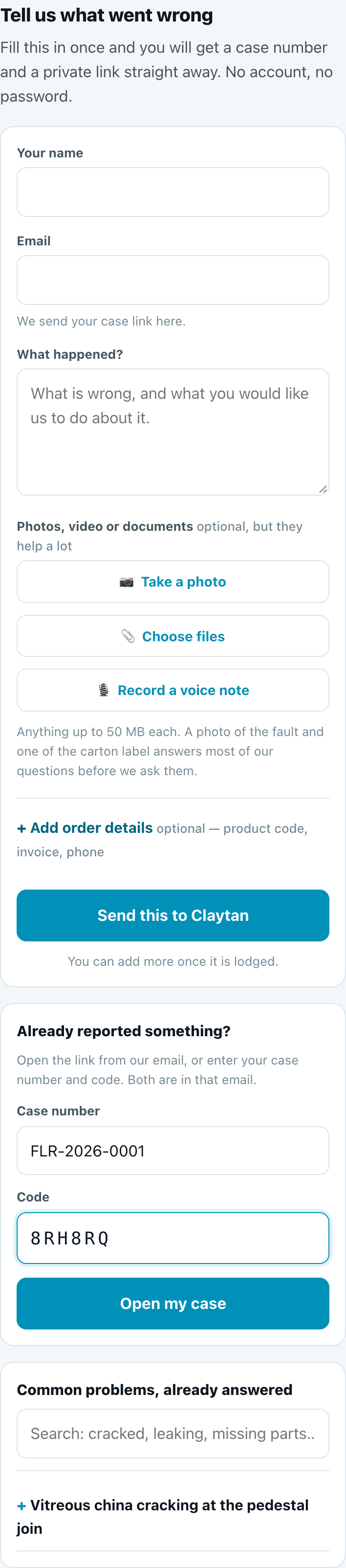
The bottom of the form: Already reported something? with case number and code fields, and the list of common problems already answered
The second door in, and the wiki. Under the lookup box are published, customer-facing articles. Someone may solve their own problem before lodging anything.

Door twoFor the team: the board, the case, the composer

Sign in at ccau.rightcortex.io/flare. On a phone the same page works; drag-and-drop is desktop only, the status dropdown does the same job.

The board
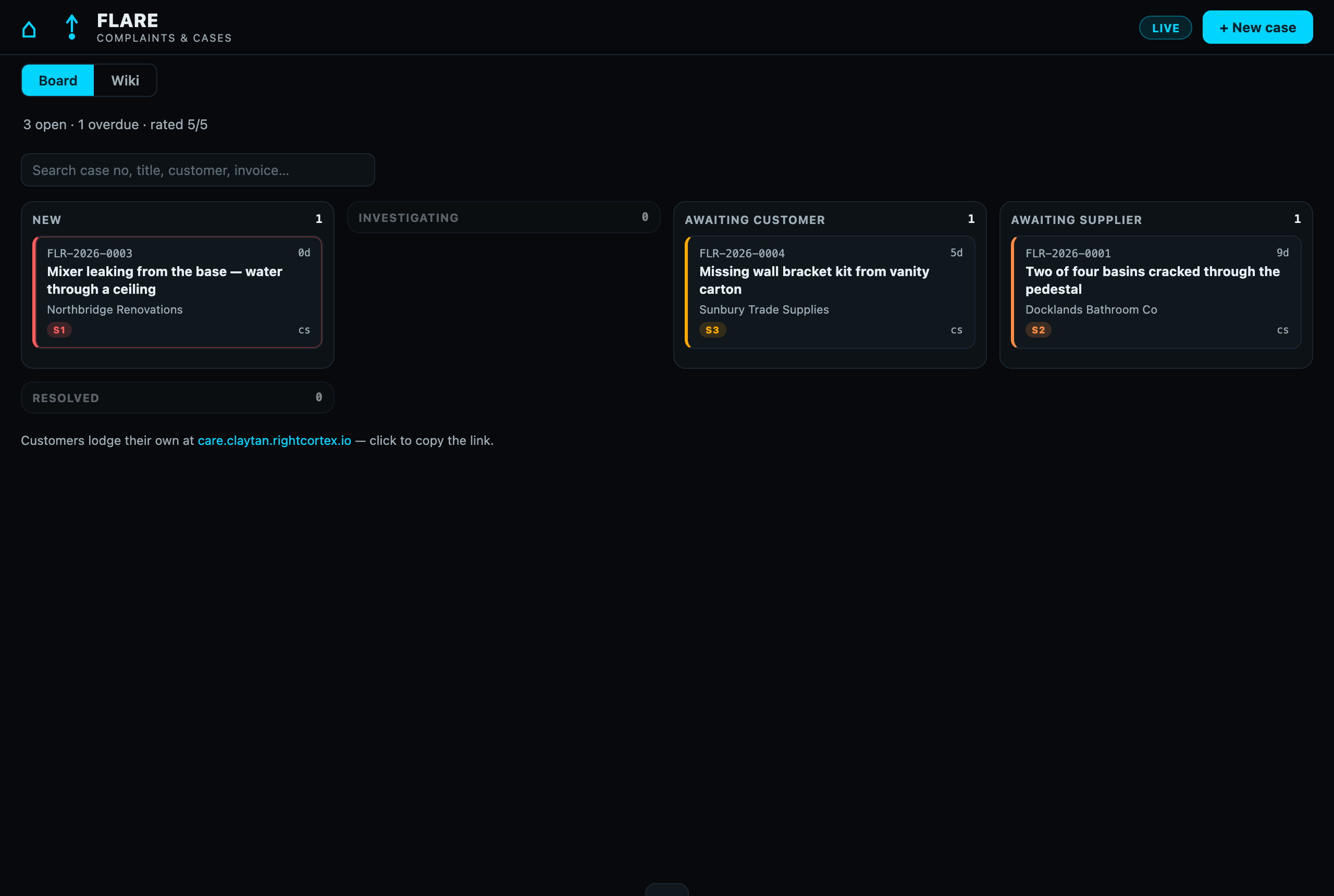
The Flare board with columns New, Investigating, Awaiting Customer, Awaiting Supplier and Resolved; one line of counts and a search box
One card per case, one column per status. A red edge is a breached response time. Empty columns fold away, so a quiet board stays quiet. The customer address is at the bottom, click to copy it.

Raising a case the customer told you about
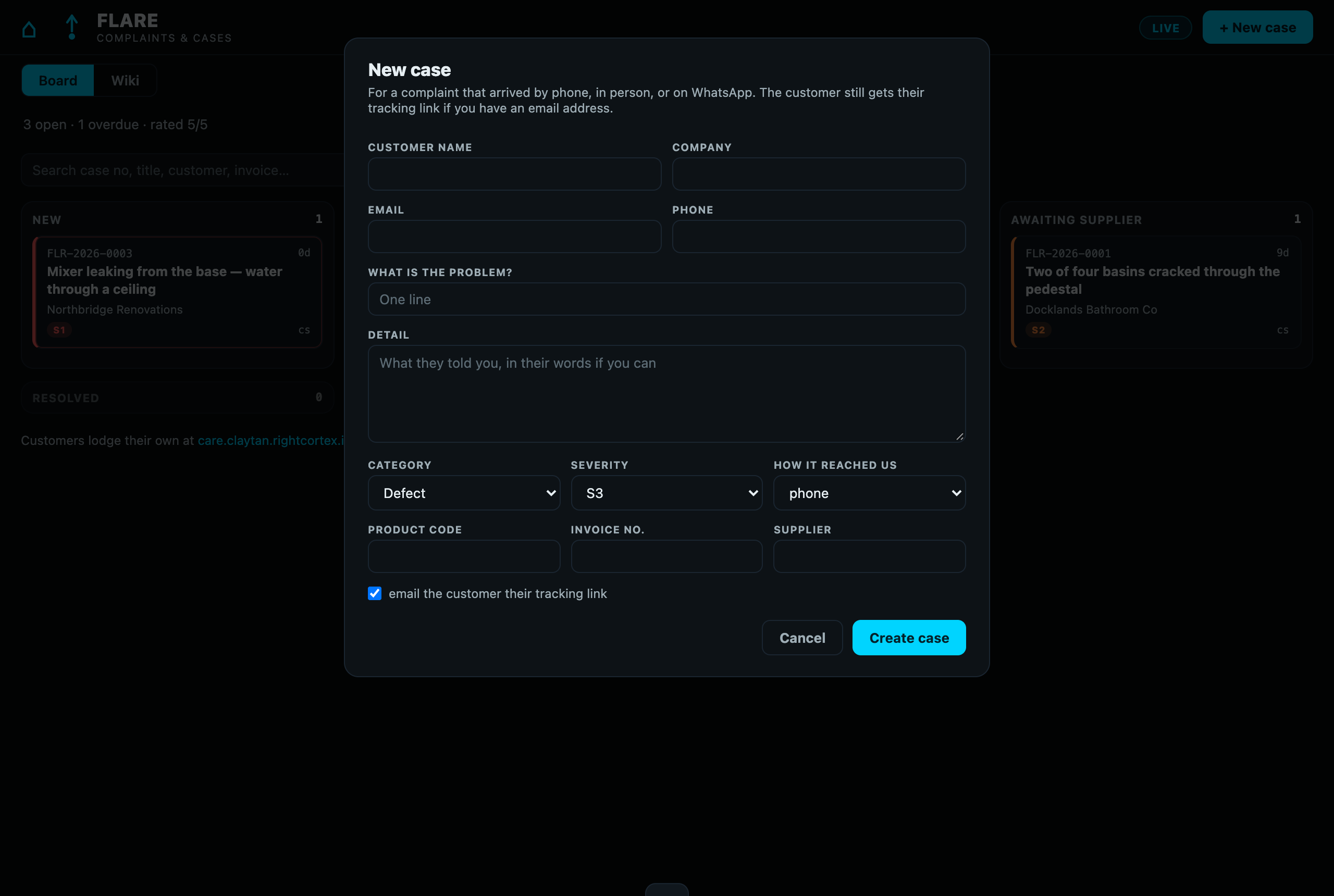
The New case dialog: customer name, company, email, phone, what is the problem, detail, category, severity, how it reached us, product code, invoice, supplier, and a ticked box to email the customer their tracking link
+ New case is for a complaint that arrived by phone, WhatsApp, email or in person. What is the problem? becomes the title the customer sees. Detail appears on their page as their own first message, so write it in their words. Supplier stays internal. Leave email the customer their tracking link ticked and they get the same acknowledgement as a customer who used the form. Untick it if you have no email or the customer does not want one.

Inside a case

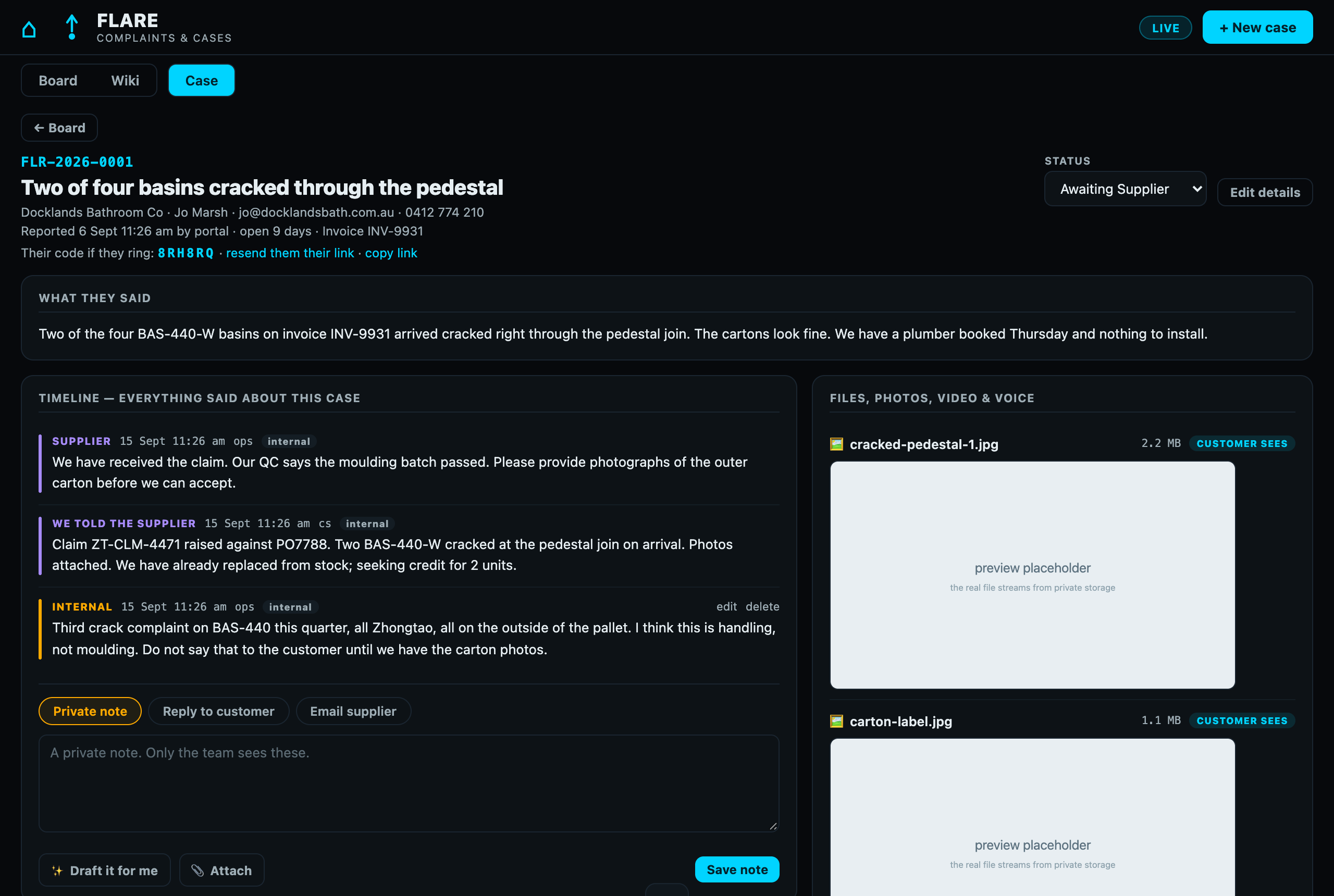
A case: header with case number, title, customer contact, their code, resend link and copy link; a status dropdown; what they said; the timeline with supplier, we told the supplier and internal entries; the composer; files on the right
Header, what they said, the timeline, the composer, and files on the right. Their code if they ring and resend them their link are for a customer who lost the email. The status dropdown runs the same gates as dragging a card.

The timeline has three lanes. The colour tells you who can read it.

Internal · gold

Private notes, the automatic triage note, status changes. The team only.

Private note
Customer · cyan

What they said, and what we said back. Sends by email and appears on their case page.

Reply to customer
Supplier · purple

Our claim to the supplier and their reply. Emailed to them, invisible to the customer.

Email supplier
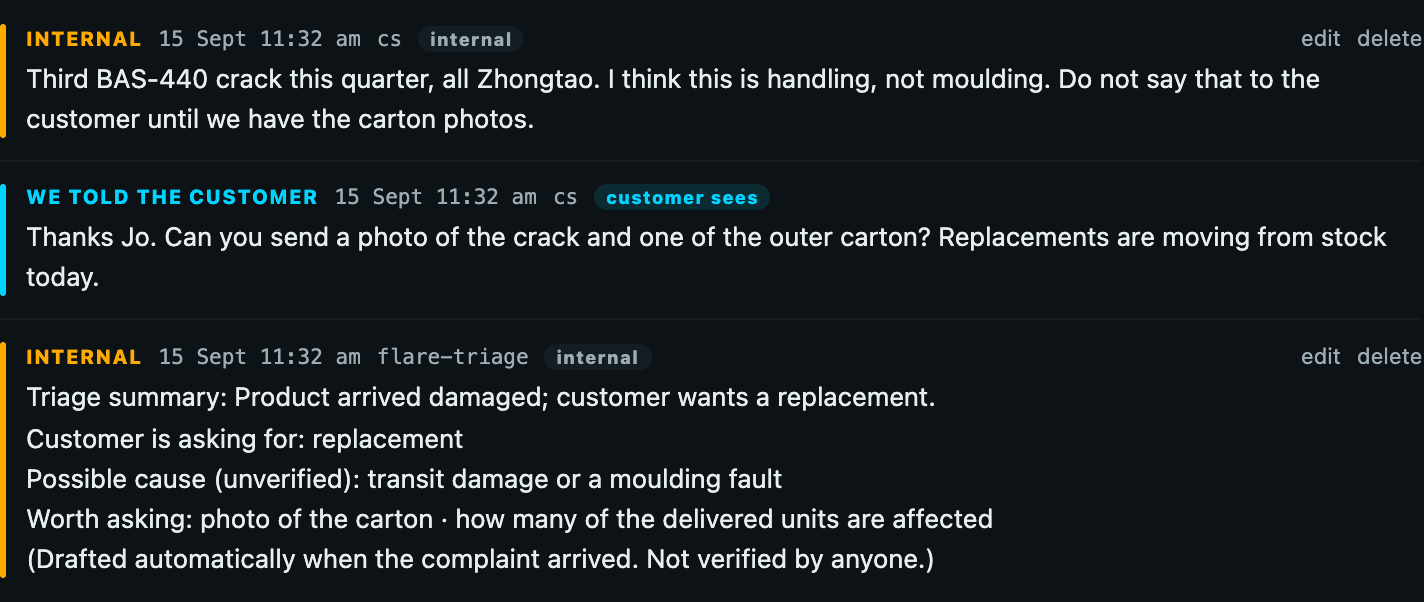
A timeline with an internal note marked internal, a message marked We told the customer with a customer sees badge, and the automatic triage note marked internal
Every entry carries a badge: customer sees or internal. The triage note at the bottom is written automatically when a complaint arrives. It is a machine guess, not a finding, and the customer never sees it.

The composer: one box, three buttons, three very different results
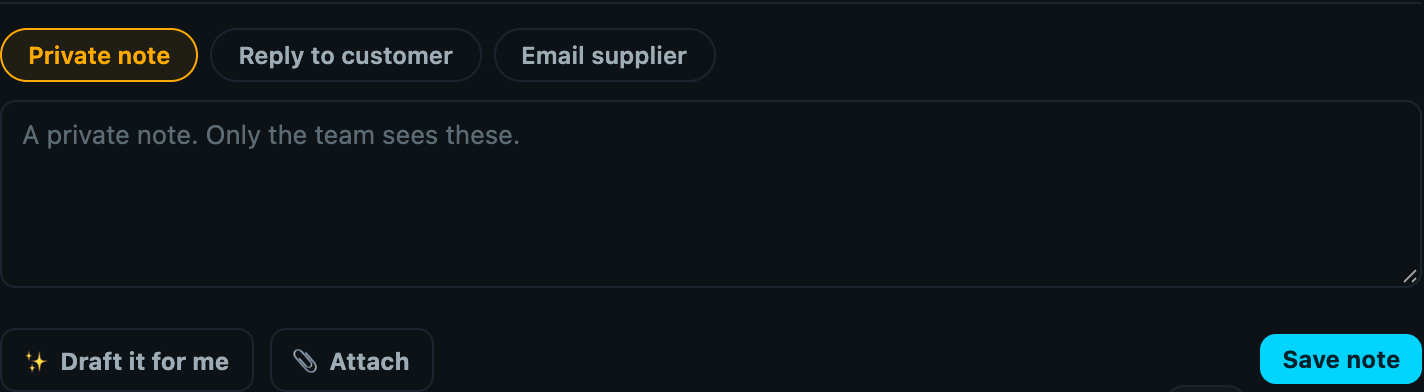
Composer in Private note mode: placeholder reads A private note. Only the team sees these. Button reads Save note
Private note is the default. Only the team sees these. Think out loud here, disagree with the supplier here, note what you suspect here.
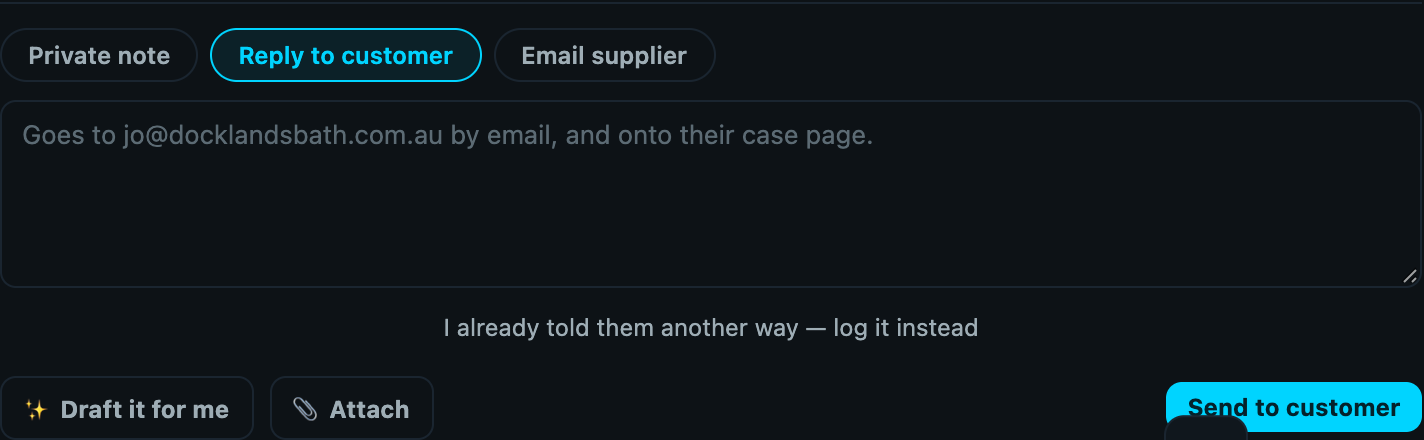
Composer in Reply to customer mode: placeholder reads Goes to jo@docklandsbath.com.au by email, and onto their case page. Button reads Send to customer
Reply to customer actually sends. The button changes to Send to customer, the placeholder names the address, and you are asked to confirm. Sending from a New case moves it to Investigating and stops the response clock. If you already told them by phone, use I already told them another way to log it without emailing.
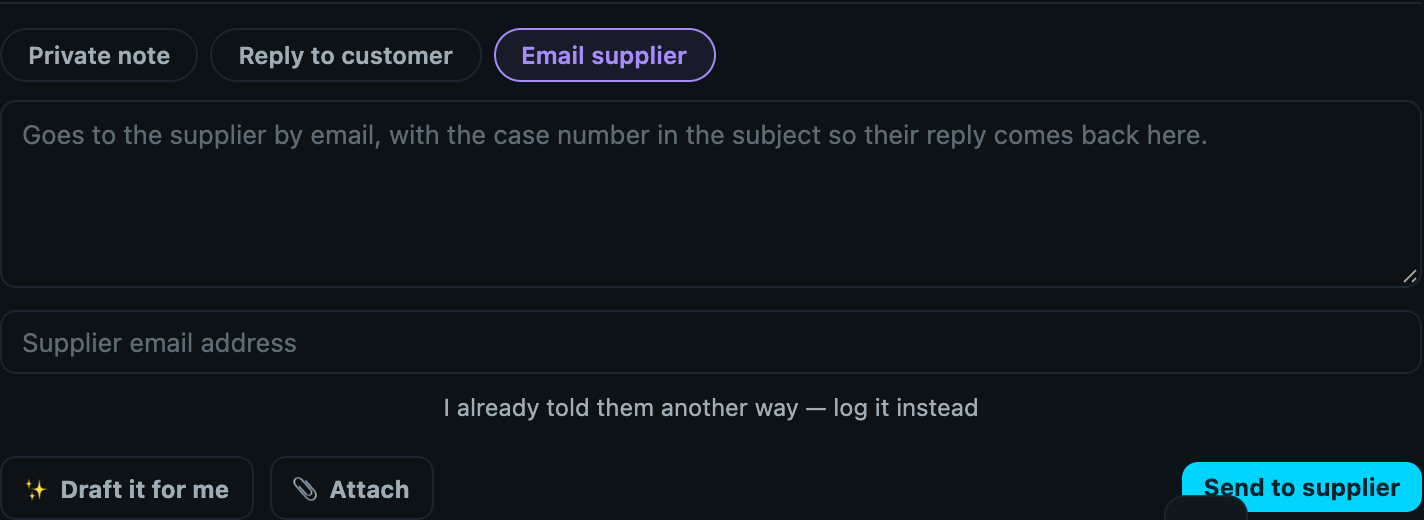
Composer in Email supplier mode with a supplier email address field and a Send to supplier button
Email supplier goes out with the case number in the subject and our intake mailbox copied, so the supplier's reply threads itself back onto this case. Moves the case to Awaiting Supplier. The customer sees the stage With the supplier and nothing else.
Attachments follow the message. A file attached to a private note stays internal. A file attached to a reply to the customer goes to the customer. Draft it for me writes a first draft from the case; nothing sends until you press the button.

Files, photos, video and voice

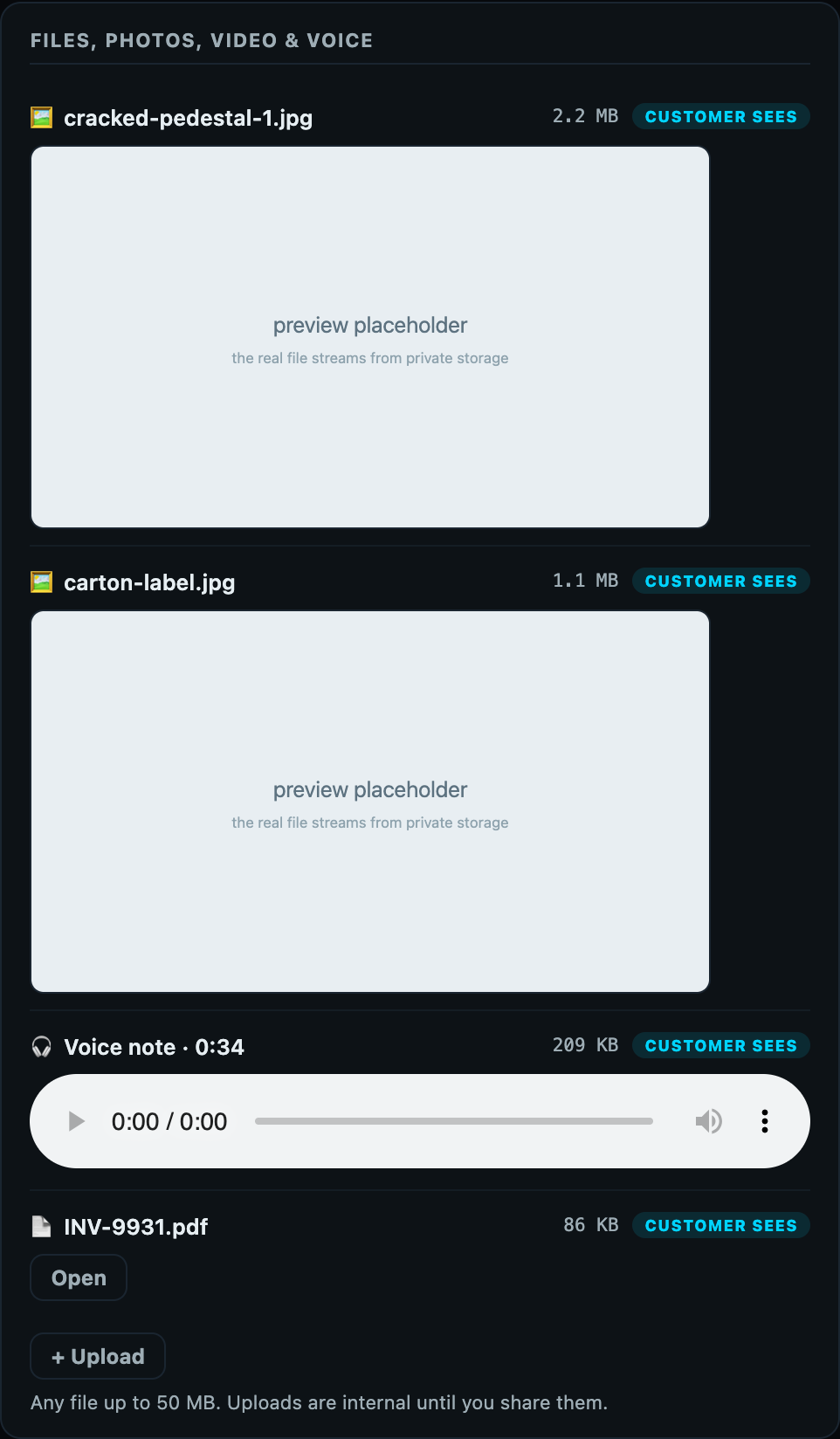
Files panel listing two photos, a voice note and a PDF, each with a customer sees badge, and an Upload button noting uploads are internal until you share them
Anything the customer uploaded is already customer sees. Anything the team uploads with + Upload starts as internal. Click the badge to flip it. Flip it only when you mean the customer to open that file.

Outcome, supplier claim and what we learned
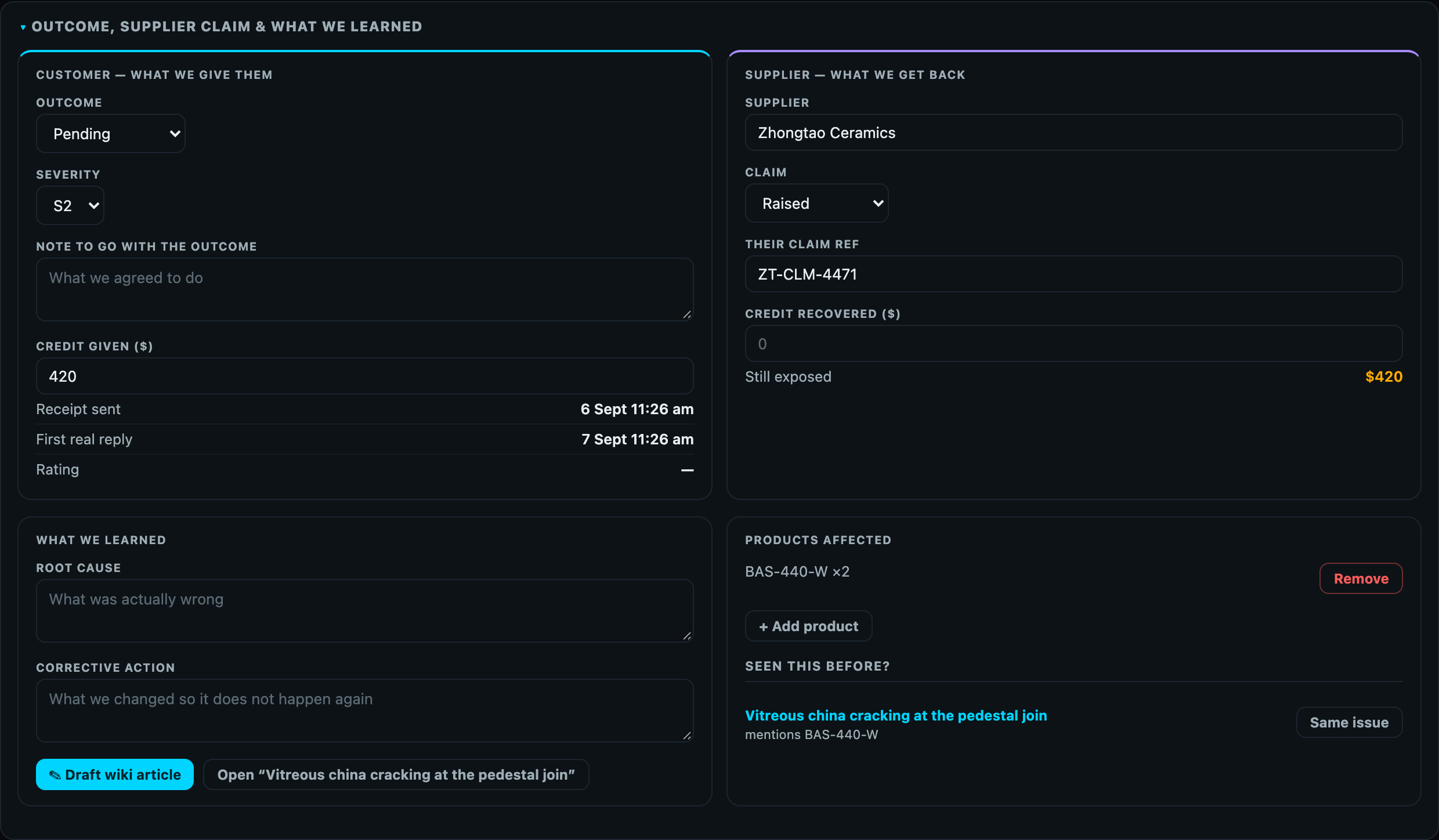
The folded section opened: customer outcome, severity, note, credit given; supplier, claim status, claim ref, credit recovered, still exposed; root cause and corrective action; products affected; seen this before
Folded below the conversation until it is needed. Left is what we give the customer: the Outcome and the Note both appear on the customer's page once the case is Resolved. Everything on the right, and root cause and corrective action, is internal. Still exposed is credit we gave minus credit we got back. Credit figures show only to people with finance access.

The wiki grows out of closed cases

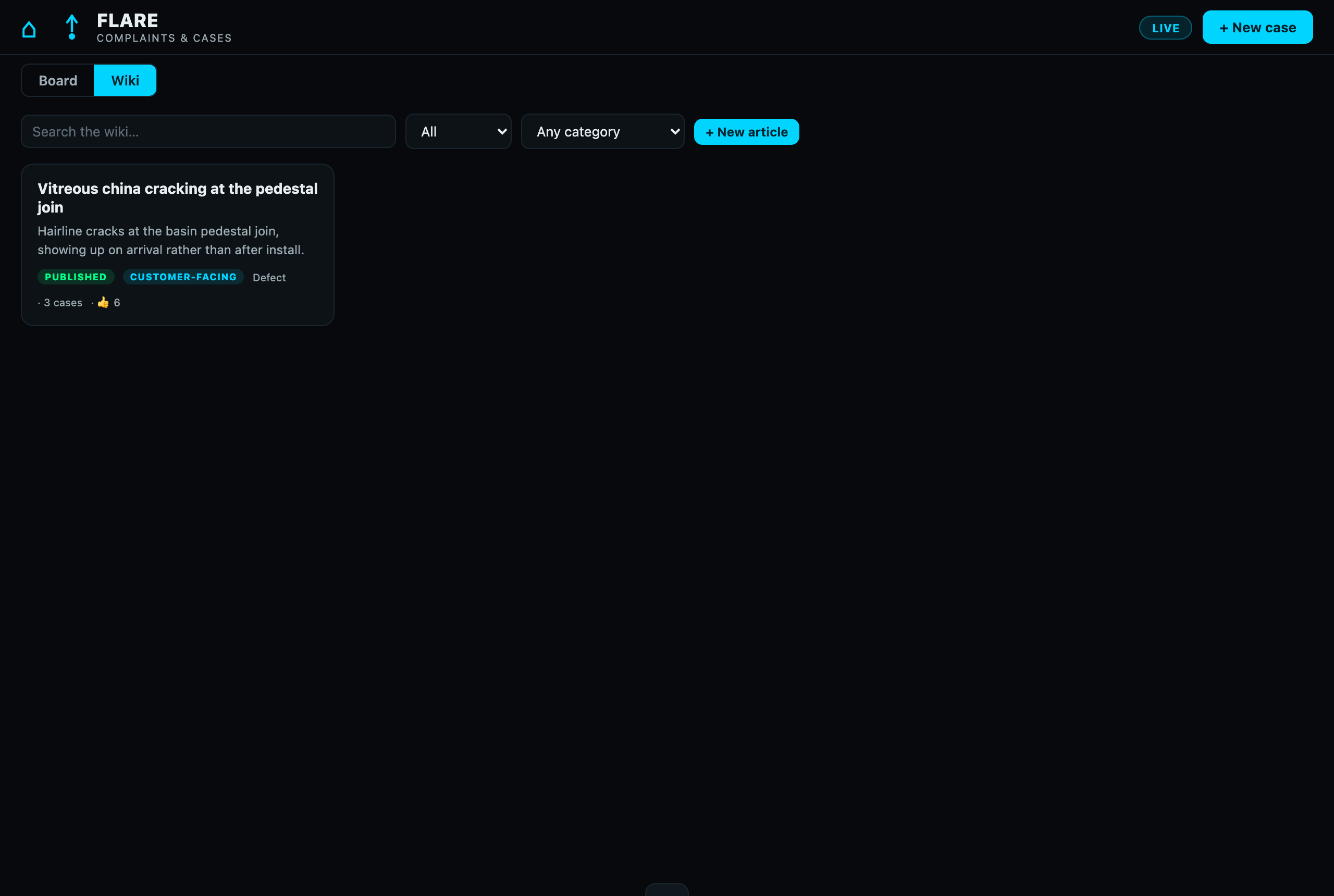
The Wiki tab with one article: Vitreous china cracking at the pedestal join, published, customer-facing, Defect, 3 cases
When a case is closed, an article is drafted from that case's own transcript and saved as a draft. A person edits and publishes it, and their name goes on it. Mark an article customer-facing and it appears on the customer form, where someone may solve their own problem before lodging anything. Drafts and internal articles never leave the building.

The wallWhat the customer sees, and what they never do

Enforced on the server on every read of the customer page. A client-side flag is never trusted. If it is not in the left column, the customer cannot get to it.

The customer seesInternal only
Case number, title and their own description. On a case you raised, that is the What is the problem? line and the Detail box.Private notes, and the automatic triage note.
Status in plain words. Received · Being looked at · Waiting on you · With the supplier · Resolved.Which supplier, the claim status, the claim reference, and every email to or from the supplier.
Every message sent as Reply to customer, and their own replies.Severity, category, who owns the case, and the response-time clock.
Files marked customer sees: their own uploads, and anything the team flipped to shared or attached to a customer reply.Files marked internal: team uploads and anything attached to a private note or a supplier email.
The outcome and its note, once the case is Resolved, plus the rating request.Credit given, credit recovered, root cause, corrective action, products affected.
Published articles marked customer-facing, on the form.Wiki drafts and internal articles.

Emails that go to the customer without anyone pressing Send

  1. AcknowledgementThe moment a case is lodged on the form, or created with email the customer their tracking link ticked. Carries the case number, code and link.
  2. ResolvedWhen the case moves to Resolved. Names the outcome, invites them to review or reply, and asks for a rating.
  3. Resend linkOnly when a team member clicks resend them their link on the case, after a confirmation.

Every Reply to customer also emails, after you confirm. Private notes, supplier emails, status changes, file uploads and edits to internal fields send nothing to the customer.

LifecycleStages, and what has to be true before a case can move

The gates are enforced on the server, so dragging a card, using the dropdown and calling the API all obey the same rules. When a gate needs one more fact, the board asks for it instead of refusing.

New
Just arrived. Response clock running.
Customer sees: Received
Investigating
Automatic on the first reply to the customer, or on any reply from either side.
Customer sees: Being looked at
Awaiting Customer
Needs at least one reply sent to them first.
Customer sees: Waiting on you
Awaiting Supplier
Needs a supplier named. Automatic when you email one.
Customer sees: With the supplier
Resolved
Needs an outcome other than Pending. Emails the customer.
Customer sees: Resolved, plus the outcome
Closed
Resolved, and the supplier claim decided, even if the decision is "not needed". Drafts the wiki article.
Customer sees: Resolved, and a note that the case is closed
The response clock measures a person, not the auto-reply. It stops at the first Reply to customer from a human. S1 4 hours · S2 24 hours · S3 48 hours · S4 72 hours. A card with a red edge has breached, and a note is written on the case when that happens.

Keep it simpleRules of thumb

Never use the customer form for a customer. It emails them and publishes your words as theirs. Use + New case.
Private note is the default for a reason. When in doubt, write a note. You can always send a reply afterwards.
Do not argue with the supplier in a customer reply. Supplier talk belongs in Email supplier or a private note.
Read the button before you press it. Save note keeps it inside. Send to customer sends. Send to supplier sends.
Do not flip a file to "customer sees" to be helpful. Flip it only when you would happily hand them that file across a counter.
Name the supplier early. You cannot wait on a supplier you have not named, and the claim cannot be counted without one.
Resolve with a real outcome and a note. Both go to the customer. "Pending" tells them nothing, so the gate will not let you.
Close the claim, not just the case. A credit left unassessed is money we absorbed and never counted.
If they ring, read them their code. It is on the case header. Case number plus code opens their page; the number alone does not.
Flare · Right Cortex · Claytan Ceramic (Australia) Pty Ltd · Screens in this guide are from a demonstration copy with example cases. Guide updated 15 September 2026.